The Short Answer
- On Android, "card grading app" search results mix true AI graders with scanners that only identify and price cards — check for sub-grades before you subscribe.
- PreGradeCards works in Chrome on any modern Android phone, can be installed to the home screen, and returns centering ratios plus corner, edge and surface sub-grades.
- Pixel and Galaxy phones need two settings changed for grading photos: turn off scene/AI enhancement and use Pro or macro focus for corners.
- New accounts get 2 free credits — enough to test an AI pre-grade on your own cards before paying a grading company.
- There is no official PSA pre-grading app for Android; PSA's app tracks orders and verifies certs.
Quick answer: what is the best card grading app for Android?
The best card grading app for Android is one that measures your card's centering, corners, edges and surface from the phone camera and predicts the grade a company like PSA, BGS, CGC or TAG would give — and shows the evidence behind it. PreGradeCards does that in Chrome with no Play Store install and gives new accounts 2 free credits. Many Play Store results are card scanners that identify a card and look up its price but never estimate a grade.
Android users search this differently from iPhone users: suggestions like "psa grading app for android", "pokemon card grading app android" and "digital card grading app for android" show people want a pre-submission check, not just a price. This guide sorts the real graders from the scanners and gives Pixel- and Galaxy-specific camera settings that stop your phone's image processing from hiding the very defects a grader looks for.
Best card grading options for Android in 2026
| Rank | Option | Estimates a grade? | Condition detail | Cost | Install |
|---|---|---|---|---|---|
| 1 | PreGradeCards | Yes — PSA, BGS, CGC, TAG | Centering ratios, corner/edge/surface sub-grades, defect notes, comps | 2 free credits; packs from $9.99 | Chrome web app; installable |
| 2 | Play Store AI grading apps | Usually one scale | Varies — many show only an overall number | Trial, then subscription | Play Store |
| 3 | Ludex | No | ID + sold prices, eBay listing | Free 200 scans/mo; from $4.99/mo | Play Store |
| 4 | CollX | No | ID + average value, marketplace | Free; Pro $9.99/mo | Play Store |
| 5 | TCGplayer app | No | TCG ID + market price (Android 9+) | Free | Play Store |
CollX and Ludex prices are from their official pages in October 2026; TCGplayer's minimum Android version is from its help centre.
What Play Store "grading apps" really do
Search the Play Store for "card grading" and you will see AI grading apps, scanners, collection trackers and APK mirrors of the same apps. A useful way to sort them is to ask what each one measures:
- Identity (scanners): which card is this? Matches artwork against a database.
- Value (price apps): what has it sold for? Pulls marketplace sales.
- Condition (graders): how good is this copy? Measures centering, corners, edges and surface.
Only the third category answers whether a card is worth grading. When an Android app says "AI grade", look for three signs of a real grader: it shows centering percentages, it shows separate sub-grades for corners, edges and surface, and it lets you photograph both sides. If it returns a single number from one front photo with no explanation, it is guessing.
Be careful with APK download sites that repackage grading apps. Installing outside the Play Store bypasses Google Play Protect and is never needed for a legitimate tool.
PreGradeCards on Android: grading in Chrome
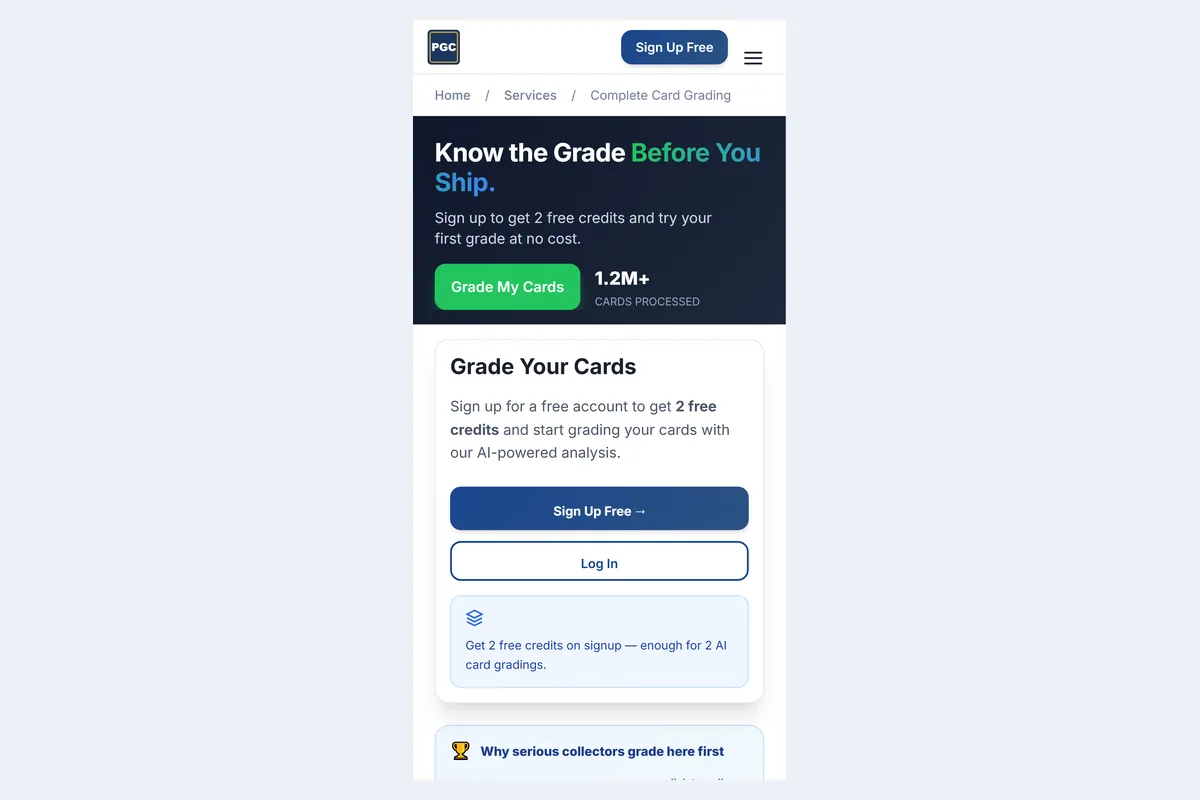
Open pregradecards.com/services/card-grading in Chrome, sign in with Google (one tap on most Android phones), and tap the camera button. Chrome asks for camera permission once, then opens the rear camera inside the page.
Each grade returns predicted grades for PSA, BGS, CGC and TAG, measured centering ratios, corner, edge and surface sub-grades with defect notes, and market comps so you can see whether a predicted 9 or 10 is worth the fee. Because it is a web app, the same account works on your Android tablet, a Chromebook or a laptop.
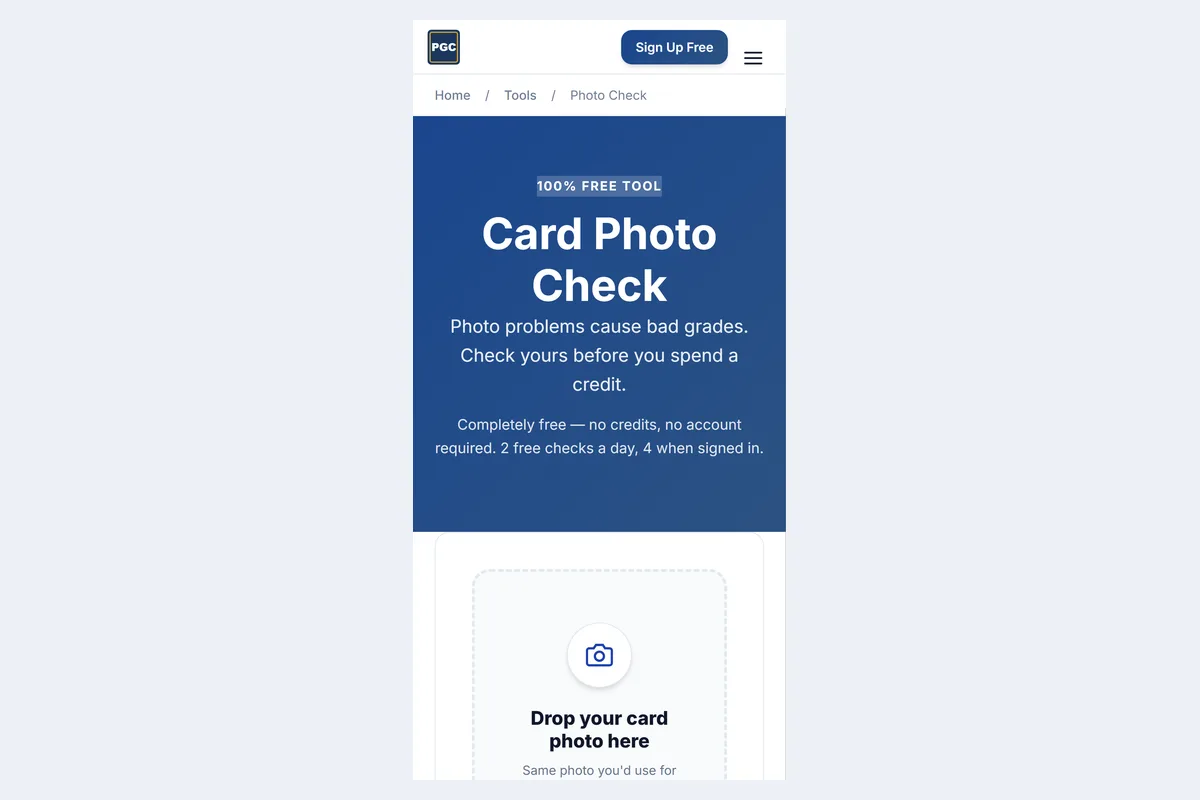
If you are not sure your photo is good enough, the free Photo Check flags blur, glare and cropping before you spend a credit.
Google Pixel camera settings for grading photos
Pixel phones produce excellent photos, but their computational processing is tuned for people and scenery, not flat cardboard. For grading:
- Use the main (1x) lens, not ultrawide. Ultrawide lenses bend straight borders and distort centering.
- Let macro focus engage on Pixel Pro models by moving close; on non-Pro Pixels, step back slightly and zoom to 2x so the card stays sharp.
- Avoid Night Sight. It stacks frames and smooths fine texture — exactly the scratches and print lines you want to see.
- Tap to focus on a corner and slide the exposure down slightly on white-bordered cards so the border does not blow out.
- Turn on grid lines (camera settings › Grid type) to keep the card square.
- No flash; use soft daylight or a diffused lamp.
Samsung Galaxy camera settings for grading photos
- Turn off Scene Optimizer (Camera settings › Intelligent features). It boosts contrast and sharpening, which can exaggerate or hide edge wear.
- Use Pro mode if available: set ISO 100–200, manual focus on a corner, and keep shutter speed fast enough to avoid shake.
- Enable Focus enhancer / macro on Galaxy S Ultra and Plus models for corner detail, or use the 3x lens on Ultras to shoot from further away with less distortion.
- Disable Auto HDR boost for dark-bordered cards if edges look haloed.
- Turn on grid lines and the horizontal level to keep the phone parallel.
The same principles apply to OnePlus, Motorola and other Android phones: main lens, no beauty or AI enhancement, no flash, phone parallel to the card.
Install it like an app (no Play Store needed)
In Chrome, open PreGradeCards, tap the three-dot menu and choose Add to Home screen or Install app. You get a home-screen icon that opens full-screen, keeps you signed in and uses the camera directly — without the storage, permissions or background updates of a Play Store app.
This also avoids a common Android headache: scanner apps that stop working after an OS update until the developer ships a fix. A web app is updated on the server, so everyone always runs the current version.
Is there a PSA grading app for Android?
PSA publishes an official app on Android and iOS, but it is built for managing submissions — tracking orders, verifying cert numbers and viewing your collection. It does not pre-grade a card from a photo. If you searched "psa grading app for android" hoping to estimate a grade, you need an AI pre-grader first, then PSA's app to track the order once it is submitted.
Related reading: how to track your PSA submission and the PSA grading cost calculator to estimate fees before you send.
Does it work on budget Android phones?
Yes. AI grading needs a sharp, well-lit photo, not a flagship camera. On budget phones (Galaxy A series, Moto G, older Pixels):
- Shoot from 20–25 cm and zoom 2x rather than getting closer than the lens can focus.
- Use more light, not more processing — a cheap LED desk lamp diffused through paper works well.
- Take two photos and keep the sharper one; check it at 100% zoom before uploading.
- Run the free Photo Check first.
For the full photo protocol, see how to photograph cards for grading on iPhone and Android.
How accurate is Android AI grading?
The phone brand matters far less than the photo. With a sharp, glare-free photo of both sides, PreGradeCards reports about 89% agreement within one grade point of professional grades across more than 1.2 million processed images. No tool can promise the exact grade a human grader assigns, so use the prediction as a filter: submit predicted 9s and 10s with strong comps, and think twice about predicted 8s on modern cards.
Centering is the most objective part of any grade. PSA's published standard for a Gem Mint 10 is roughly 55/45 to 60/40 on the front and 75/25 on the back, so a card measuring 65/35 on the front is unlikely to reach a 10 regardless of corners.
Cost math: when an Android pre-grade pays for itself
Grading fees are the reason pre-grading exists. PSA's per-card fees start in the tens of dollars for value tiers and climb with declared value and speed; CGC, BGS and TAG have their own tier tables, and every company adds return shipping and insurance. Against that, an AI pre-grade costs a fraction of a dollar per card on a pack.
A simple rule: grade only when (graded value at the predicted grade − raw value) is comfortably larger than the total grading cost, including shipping both ways. If a modern card sells for $40 raw and $90 in a PSA 10 but only $45 in a PSA 9, a predicted 9 is a clear "don't submit" — the fee would swallow the difference. A predicted 10 with good centering is a reasonable bet. Run the numbers in the PSA grading cost calculator and check for upcharges with the PSA upcharge calculator.
| Predicted grade | Typical decision | Why |
|---|---|---|
| 10 (centering 55/45 or better) | Submit | Top-grade premium usually covers fees |
| 9.5 / 9 | Submit only high-value cards | 9s often sell close to raw on modern cards |
| 8 or lower | Sell raw or keep | Fee rarely recovered except vintage keys |
Android troubleshooting: camera won't open, blurry uploads, wrong card
- Camera button does nothing in Chrome: Settings › Apps › Chrome › Permissions › Camera › Allow, then reload. If you denied it once, Chrome remembers until you change it in Site settings.
- Photos look sharp on the phone but blurry after upload: you may be uploading a thumbnail from a messaging app. Upload the original from the camera or Photos app.
- Grader can't find the card edges: use a darker, plain background and leave a margin on every side.
- Holo glare washes out the surface: move the light to the side, not above, and tilt the card a few degrees.
- Battery saver on: some Android power modes throttle the camera; turn it off while grading a batch.
How we tested
Devices: Google Pixel 7 (Chrome) and Samsung Galaxy S9+ (Chrome) in emulation and on-device photos; a budget Moto G for low-end checks. Cards: modern chrome, vintage cardboard and TCG holos.
Sources: CollX and Ludex official pricing pages, TCGplayer help centre (Android 9+ requirement), PSA grading standards. We re-check app features monthly.
Frequently Asked Questions
What is the best free card grading app for Android?
PreGradeCards: it runs in Chrome without a Play Store install and new accounts get 2 free credits to try AI pre-grading. Ludex and CollX are free for scanning and pricing but do not estimate a grade.
Is there a PSA grading app for Android?
PSA's official Android app tracks submissions and verifies cert numbers; it does not predict a grade from a photo. Use an AI pre-grader to estimate the grade before submitting.
Is there a Pokémon card grading app for Android?
Yes. PreGradeCards grades Pokémon and other TCG cards in Chrome on Android, with CGC and TAG estimates alongside PSA and BGS.
Should I turn off Scene Optimizer on my Samsung for card photos?
Yes. Scene Optimizer adds contrast and sharpening that can hide or exaggerate edge wear. Turn it off, use the main lens and avoid flash.
Is it safe to install grading apps from APK sites?
It isn't necessary and adds risk because it bypasses Google Play Protect. Use the Play Store or a web app you can install from Chrome.
Do I need a flagship Android phone for AI grading?
No. A sharp, well-lit photo matters more than the phone. Budget phones work well at 2x zoom from 20–25 cm with good light.
Sources & Further Reading
- PSA Grading Standards (PSA Magazine)
- TCGplayer App FAQ (supported Android versions)
- Ludex memberships
- CollX Pro pricing
- Google Pixel Camera Help
Emily Rodriguez analyzes grading cost, population, and pricing data across PSA, BGS, SGC, CGC, and TAG. She built the PreGradeCards ROI calculator and submission planner, and her market reports on grading backlog, turnaround times, and slab premiums are cited by collectors and dealers worldwide.
Create a free account and get 2 free credits — enough for 2 complete AI gradings with market pricing. No credit card required.
Get Your Free Credits →