The Short Answer
- Modern browsers can open your phone's camera directly, so a web page can scan and grade cards with no App Store or Play Store install.
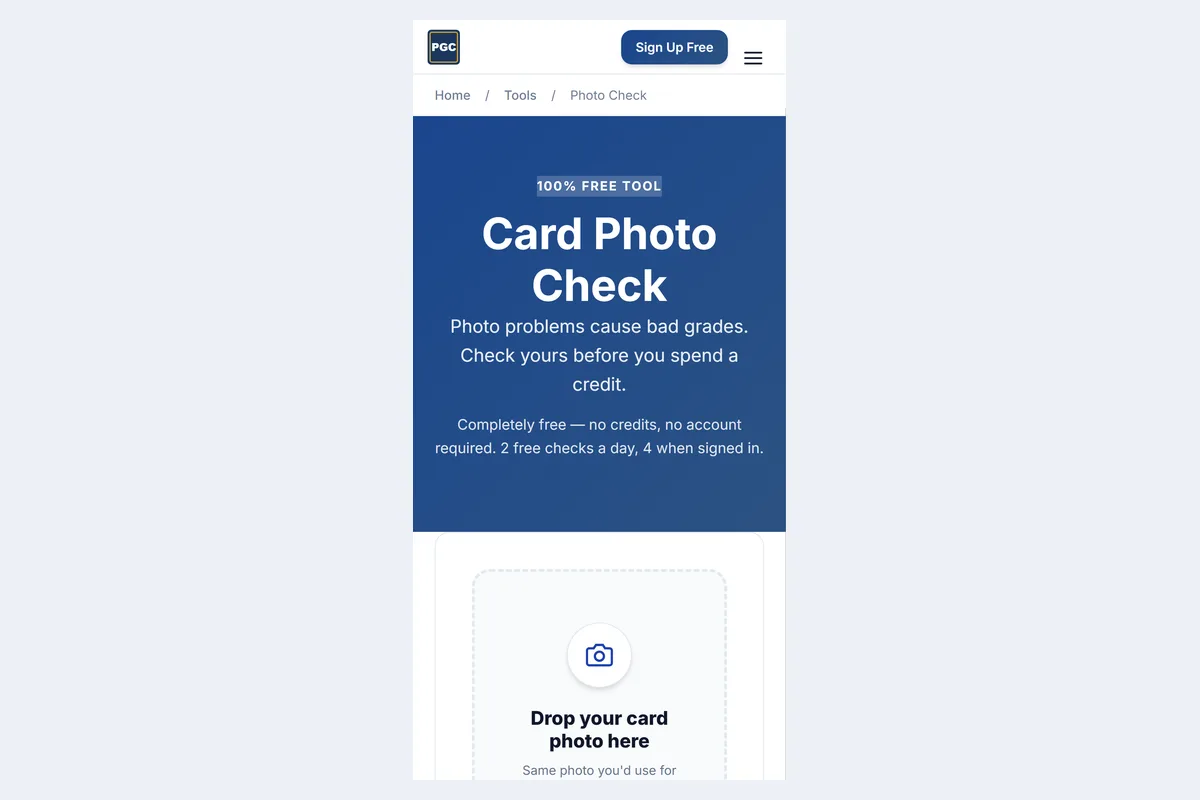
- PreGradeCards grades sports and TCG cards in the browser (2 free credits); its Photo Check is free with no account (2 checks a day, 4 signed in).
- Google Lens and iPhone Visual Look Up identify cards for free from the photos you already take.
- Web apps can be added to the home screen and behave like apps without using storage or background permissions.
- Installed apps still win for offline use and very fast bulk scanning of hundreds of cards in one sitting.
Quick answer: can you scan cards without downloading an app?
Yes. Safari, Chrome, Edge and Firefox can all open your phone's camera inside a web page, so you can scan and pre-grade trading cards with no download. PreGradeCards grades sports and TCG cards in the browser — centering, corners, edges, surface and predicted PSA, BGS, CGC and TAG grades — with 2 free credits, and its Photo Check is free with no account. For identification only, Google Lens and iPhone Visual Look Up are built into most phones.
Searches like "card scanner app no download", "card scanner app online" and "card grading online" come from people who don't want another app, are on a work or school phone that blocks installs, or are short on storage. This guide shows what works in a browser today and where a native app still has the edge.
How browser card scanning works
Web pages can request the camera through standard browser features (the same permission video-call sites use) or through a file input that opens the camera directly on phones. Once you take a photo, the page uploads it to a server where the AI does the heavy work — finding the card's edges, measuring borders, inspecting corners and surface — and returns the result to the page.
Because the analysis runs on the server, a web scanner is not limited by your phone's processor. A five-year-old Android phone can return the same quality of grade as a new flagship, provided the photo itself is sharp. The trade-off is that you need a data connection.
- Camera permission is per site and can be revoked any time in browser settings.
- Uploads are the original photo, so use the camera rather than a screenshot or a compressed messaging-app copy.
- Results stay in your account, accessible from any device.
No-download options compared
| Tool | What it does | Account needed | Cost |
|---|---|---|---|
| PreGradeCards grading | Identifies, prices (comps) and grades condition with sub-grades; PSA/BGS/CGC/TAG estimates | Yes (Apple, Google or email) | 2 free credits; packs from $9.99 |
| PreGradeCards Photo Check | Checks blur, glare, framing before grading | No | Free — 2/day, 4 signed in |
| PreGradeCards centering analysis | Measures front/back centering ratios | Yes | Credit-based |
| Google Lens | Identifies the card; shopping results | No | Free |
| iPhone Visual Look Up | Identifies subjects in photos | No | Free |
| Marketplace search (eBay sold, TCGplayer) | Price checks by typing the card | No | Free |
Grading a card in the browser, step by step
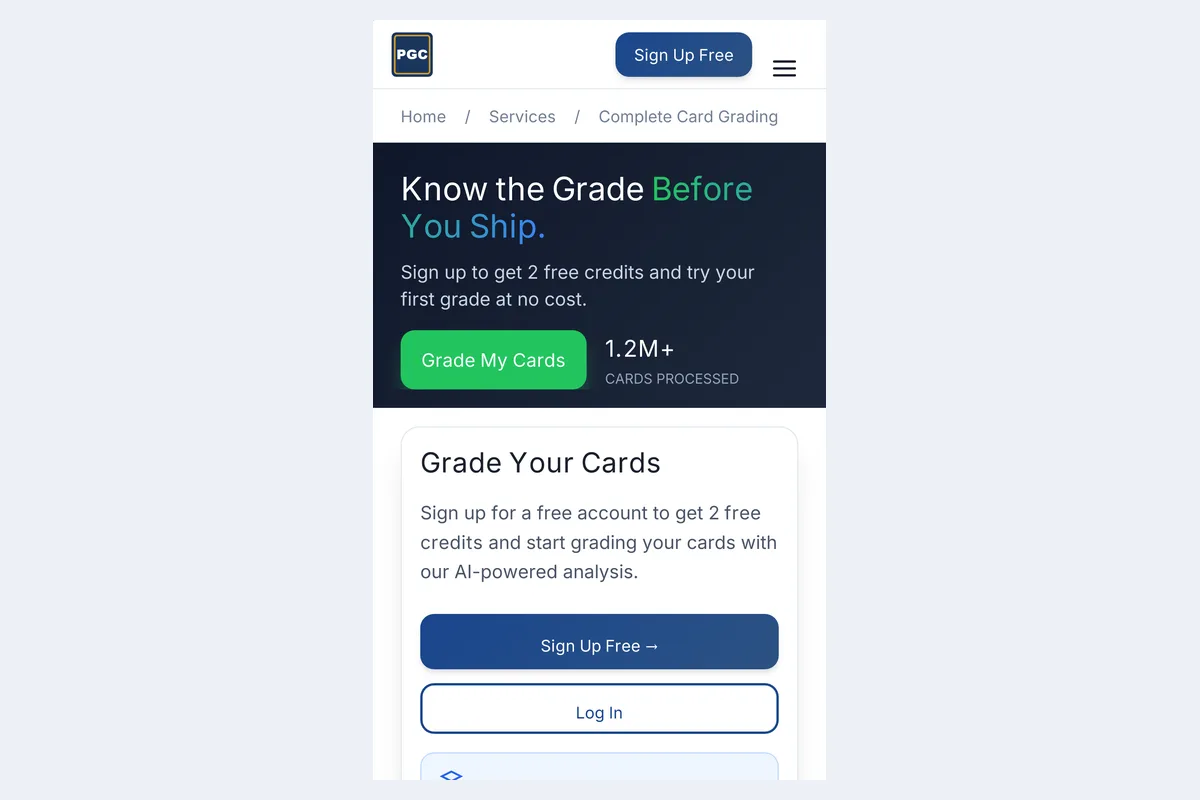
- Open the grading page and sign in. New accounts get 2 free credits.
- Tap the camera button and allow camera access for the site.
- Photograph the front: card flat on a dark, matte surface, phone parallel, soft light, no flash.
- Photograph the back the same way — back centering and back-edge whitening matter for PSA, CGC and TAG.
- Read the result: predicted grades, centering ratios, corner/edge/surface sub-grades, defect notes and comps.
On iPhone, turn on Macro Control for corner detail; on Samsung, switch off Scene Optimizer. Full settings are in how to photograph cards for grading.
Identifying cards with Google Lens and Visual Look Up
If you just need to know what a card is, the tools built into your phone are often enough. Google Lens (Android, and the Google app on iPhone) and Visual Look Up (iPhone Photos) recognise many cards from a photo and link to web results. They are great for unfamiliar promos, foreign-language cards and quick checks at shows. They don't measure condition and their shopping results mix printings and graded slabs, so confirm prices elsewhere. Step-by-step: identify cards with Google Lens and Visual Look Up.
Installed app vs browser: honest pros and cons
| Browser (no download) | Installed app | |
|---|---|---|
| Storage | None beyond browser cache | Tens to hundreds of MB |
| Permissions | Camera for that site only | Often camera, photos, notifications, tracking prompts |
| Updates | Always current | Manual or background updates |
| Works on locked-down phones | Usually | Not if installs are blocked |
| Offline | No | Some features |
| Bulk speed | Good | Best for rapid one-after-another scanning |
| Cross-device | Phone, tablet, laptop, same account | Per platform |
For grading — a deliberate check of a handful of valuable cards — the browser route has no real downside. For pricing an entire bulk box at speed, an installed scanner like TCGplayer, CollX or Ludex is faster.
Get the app feel without installing: home-screen web apps
iPhone/iPad: in Safari tap Share › Add to Home Screen. Android: in Chrome tap ⋮ › Add to Home screen or Install app. The icon opens the site full-screen, stays signed in and uses the camera directly. Removing it is as simple as deleting the icon — no data left behind in an app sandbox.
Scanning cards on a laptop or desktop
The same pages work on a computer. You can upload photos taken on your phone (AirDrop, Nearby Share or a cloud folder) or use a webcam, though most built-in webcams lack the resolution for grading — use your phone camera for the photo and the computer for reviewing results and comparing comps on a big screen. A flatbed scanner at 600 dpi or higher also produces excellent, glare-free images of non-holo cards for centering checks.
Privacy and security of browser scanners
- Only grant camera access to sites you trust; you can review permissions in Safari (Settings › Apps › Safari › Camera) or Chrome (Site settings › Camera).
- Look for HTTPS in the address bar — browsers only allow camera access on secure pages.
- Avoid uploading photos that include personal documents or addresses in the background.
- Be cautious of "free grading" sites that ask for payment details before showing any result.
Troubleshooting browser camera problems
- No camera prompt: check that the page is HTTPS and that camera isn't blocked for the site.
- Camera opens the front lens: switch to the rear camera in the capture screen.
- In-app browsers (Instagram, Facebook, TikTok) often block camera access — tap "Open in Safari/Chrome".
- Upload too large or slow: use Wi-Fi; keep the original photo, don't screenshot it.
- Blurry result: run the free Photo Check, add light and hold steady.
A no-download workflow for deciding what to grade
- Identify with Lens or Visual Look Up.
- Check sold prices by searching the card on eBay sold listings or TCGplayer.
- For cards worth several times the grading fee, run a free Photo Check.
- Grade in the browser and note the predicted grade and centering.
- Estimate fees with the PSA grading cost calculator and submit only the winners.
What a browser-based AI grader actually checks
- Card detection: finds the card's four edges against the background and corrects small rotations.
- Centering: measures left/right and top/bottom borders on the front and back and reports ratios such as 56/44. PSA's Gem Mint 10 standard is roughly 55/45–60/40 front and 75/25 back.
- Corners: looks for whitening, rounding, fraying and dings at all eight corners (front and back).
- Edges: checks for chipping, roughness and silvering along each edge — dark borders show this most.
- Surface: scans for scratches, print lines, dimples, creases, stains and haze.
- Identity and comps: names the card and pulls recent sold and active listings.
Each of those becomes a sub-grade, and the sub-grades combine into predicted grades on each company's scale. That is far more than a scanner does, and it runs entirely on the server after your browser uploads the photo.
What browser grading costs vs apps
Scanner apps are typically free with paid tiers for collection size or listing tools — CollX Pro is $9.99 per month and Ludex ranges from $4.99 to $24.99 per month. Browser grading on PreGradeCards is credit-based: 2 free credits for new accounts, then packs from $9.99, which works out to well under a dollar per card on larger packs. There's no subscription to cancel, which suits collectors who grade in bursts — after a big break, before a card show, or before a submission deadline.
Using card tools on school or work phones
Managed phones often block app installs but allow the browser. A web tool is the simplest route: no installation request, nothing for an administrator to approve, and nothing left on the device afterwards. If camera access is blocked by device policy, take photos with the regular camera and upload them from the photo library instead — the grader analyses uploaded photos the same way as live captures.
For shared family tablets, use a separate browser profile or sign out after grading so each collector keeps their own history.
Common questions from first-time users
Do I need to create an account? Not for the free Photo Check (2 checks a day); full grades need a free account so results are saved, and new accounts get 2 free credits. Can I grade the back only? Grade the front and back together for the most accurate result — centering and corners on both sides count. What file types work? Normal phone photos (HEIC, JPEG, PNG) upload directly. How long does a grade take? Typically under a minute or two, depending on load and connection.
Who should use a no-download card scanner?
- Occasional collectors who grade a few cards a year and don't want another subscription app.
- Parents and kids checking Pokémon pulls on a shared or managed phone where app installs need approval.
- Card show buyers who want a quick condition check on a seller's card without installing anything on the spot.
- Dealers on laptops reviewing grades and comps on a large screen after photographing on a phone.
- Anyone low on storage — photo libraries fill phones fast, and a web tool takes no space.
If you scan hundreds of cards a week for inventory, pair the browser grader with one installed scanner for speed.
Frequently Asked Questions
Is there a card scanner app with no download?
Yes. PreGradeCards works in Safari and Chrome with no install and grades condition; Google Lens and iPhone Visual Look Up identify cards without extra apps.
Can I grade cards online for free without an app?
PreGradeCards gives new accounts 2 free credits for full grades, and its Photo Check is free with no account (2 checks a day, 4 when signed in).
Does a browser card scanner work on iPhone?
Yes. Safari supports camera access for secure sites. You can also add the site to your Home Screen.
Why won't the camera open in my browser?
The site must be HTTPS and camera permission must be allowed. In-app browsers inside social media apps often block it — open the link in Safari or Chrome.
Are browser scanners as accurate as apps?
For grading, yes — the analysis runs on the server, so accuracy depends on the photo, not on whether you installed an app.
Can I use a flatbed scanner instead of a phone?
Yes. A 600 dpi or higher flatbed scan is excellent for centering and non-holo surfaces; holo cards can show glare, so phone photos under side light may be better.
Sources & Further Reading
- MDN: getUserMedia (browser camera access)
- Apple: Add a website to your Home Screen
- Google Lens help
- PSA Grading Standards
Emily Rodriguez analyzes grading cost, population, and pricing data across PSA, BGS, SGC, CGC, and TAG. She built the PreGradeCards ROI calculator and submission planner, and her market reports on grading backlog, turnaround times, and slab premiums are cited by collectors and dealers worldwide.
Create a free account and get 2 free credits — enough for 2 complete AI gradings with market pricing. No credit card required.
Get Your Free Credits →